

Operators
Overview
Section titled “Overview”Operators are the staff members who work at your tills. Each transaction recorded by Transpeye is associated with the operator who was logged in to the till at the time. Operators appear in the Transactions table, the Alerts table, the dashboard Top Operators panel, and throughout the Analytics and Reports sections. Managing operators accurately ensures that your exception data is attributed correctly and that alert investigations identify the right individuals.
The Operators page at /operators is found under Setup in the navigation bar and requires setup-level user permissions to access.
Step-by-Step Guide
Section titled “Step-by-Step Guide”Step 1: Open the Operators Page
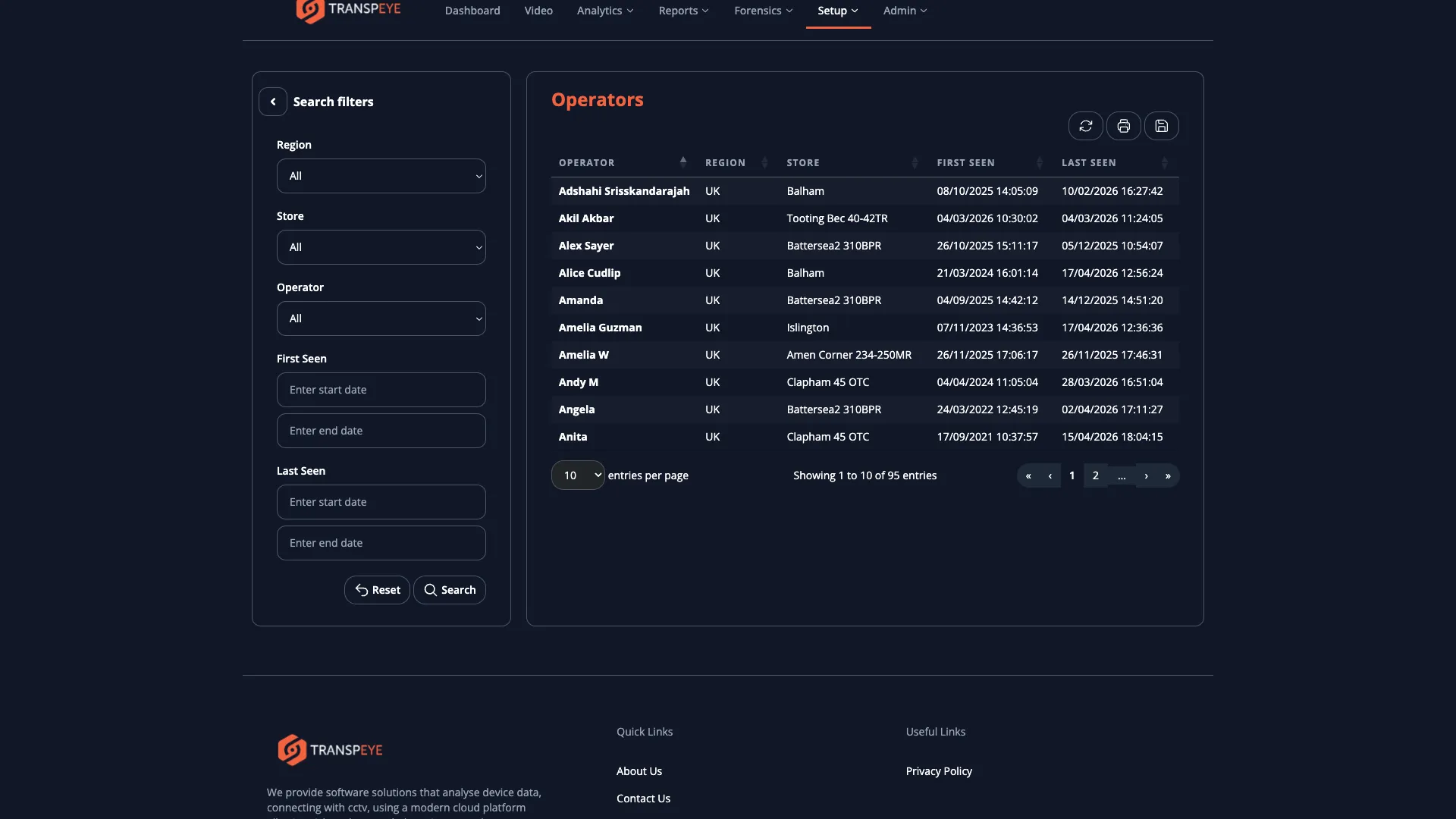
Section titled “Step 1: Open the Operators Page”In the navigation bar, click Setup, then click Operators. The operators table at /operators loads, showing all operators registered for your account.
Step 2: Understand the Operators Table
Section titled “Step 2: Understand the Operators Table”The operators table contains the following columns:
| Column | Description |
|---|---|
| Name | The display name of the operator as it appears throughout Transpeye. This is typically the staff member’s name as recorded in your point-of-sale system. |
| Role | The role or job title assigned to the operator (for example, “Cashier”, “Supervisor”, or “Manager”). This is informational and helps contextualise alerts associated with the operator. |
The operators table is sorted alphabetically by name by default. You can click column headers to sort by a different column.
Step 3: Search for a Specific Operator
Section titled “Step 3: Search for a Specific Operator”If your account has many operators, use the search controls above the table to filter the list. You can filter by operator name to quickly locate a specific individual.
Step 4: Open the Operator Detail View
Section titled “Step 4: Open the Operator Detail View”Click any operator row to open the Operator Detail view at /operator/<operator_guid>. The detail view shows:
- The operator’s full display name
- Their assigned role
- Their email address, if one has been recorded
- Summary statistics for recent alert activity associated with this operator
- A Hero Risk Scorecard, if Hero Alerts are enabled for your account
If Hero Alerts are enabled, use the Hero Risk Scorecard on the operator detail view to understand whether the operator’s refund, void, discount, override, or alert behaviour is unusual relative to their activity and peer group.
Step 5: Edit an Operator Record
Section titled “Step 5: Edit an Operator Record”Within the Operator Detail view, you can edit the operator’s details:
- Update the Name field if the operator’s name has changed or was entered incorrectly by the point-of-sale system.
- Update the Role field to reflect the operator’s current job title or responsibility level.
- Update the Email field if you want to associate an email address with this operator. This can be used by notification policies that route alert emails to location-based recipients.
Click “Save” to apply your changes. The updated name will appear throughout Transpeye wherever this operator’s records are displayed.
Step 6: Understand How Operators Are Created
Section titled “Step 6: Understand How Operators Are Created”Operators in Transpeye are typically created automatically when transaction data is received from your point-of-sale system. When the system receives a transaction containing an operator ID it has not seen before, it creates a new operator record with the name and ID provided by the till. This means that in most cases you do not need to manually create operators.
If an operator name in Transpeye does not match the expected staff member — for example because the point-of-sale system uses an employee number rather than a name — you can correct the Name field in the operator detail view.
- Correct operator names improve investigations. If operators are listed by employee numbers or codes rather than full names, update the Name field for each operator to their actual name. This makes alerts and analytics views much more useful for investigators.
- Use the Role field to segment your workforce. If you want to filter transactions or alerts by role (for example, to look at supervisor-level activity separately from cashier-level activity), maintain the Role field consistently across all operators.
- The Top Operators panel on the dashboard reflects recent activity. Operators appearing frequently in the Top Operators panel are generating the most alerts. This is a useful starting point for deciding which individuals to focus on in an investigation.
- Operators are associated with a single customer account. If your organisation has multiple Transpeye accounts (for example, a head office account and regional accounts), the same staff member may appear as a separate operator record in each account. Managing them consistently across accounts requires partner-level access.
- Deleting or merging duplicate operators. If a staff member appears twice under different names (for example, once with their full name and once with an abbreviated version), contact your administrator to merge or correct the duplicate records so that alert history is consolidated.
Troubleshooting
Section titled “Troubleshooting”| Problem | Solution |
|---|---|
| An operator appears with an unrecognisable name or number | The point-of-sale system may be sending an employee ID rather than a name. Open the operator detail view and update the Name field to the staff member’s actual name. |
| An operator is missing from the list | Operators are created when the first transaction associated with them is received. If the operator has not yet processed a transaction, they will not appear. Also check that the till agent is connected and sending data. |
| The Operators page is not accessible | Your user role does not include setup permissions. Contact your administrator. |
| An operator has duplicate records | Duplicate records can occur if the point-of-sale system sends the same employee under slightly different names or IDs. Contact your administrator to investigate and merge duplicates. |
| Editing an operator’s name does not update historical alerts | Operator names in historical alert and transaction records are stored at the time of the event. Updating the name in the operator record changes how the operator appears going forward but does not retroactively update past records. |
| An operator’s email address is required but the field is missing | Not all accounts have the operator email field enabled. Contact your administrator if you need to associate email addresses with operator records for notification routing purposes. |