

Reports
Overview
Section titled “Overview”Transpeye provides two reporting modes: On-demand reports, which you generate immediately for a selected period and set of filters, and Scheduled reports, which run automatically on a recurring schedule and can be delivered by email. Reports are accessible from the Reports dropdown in the navigation bar. Use reports to share structured summaries of alert and transaction activity with managers, investigators, or external stakeholders.
Step-by-Step Guide
Section titled “Step-by-Step Guide”Step 1: Open the Reports Page
Section titled “Step 1: Open the Reports Page”In the navigation bar, click Reports, then click On-demand. The Reports page at /reports loads, showing a list of previously generated reports and a form for creating a new one.
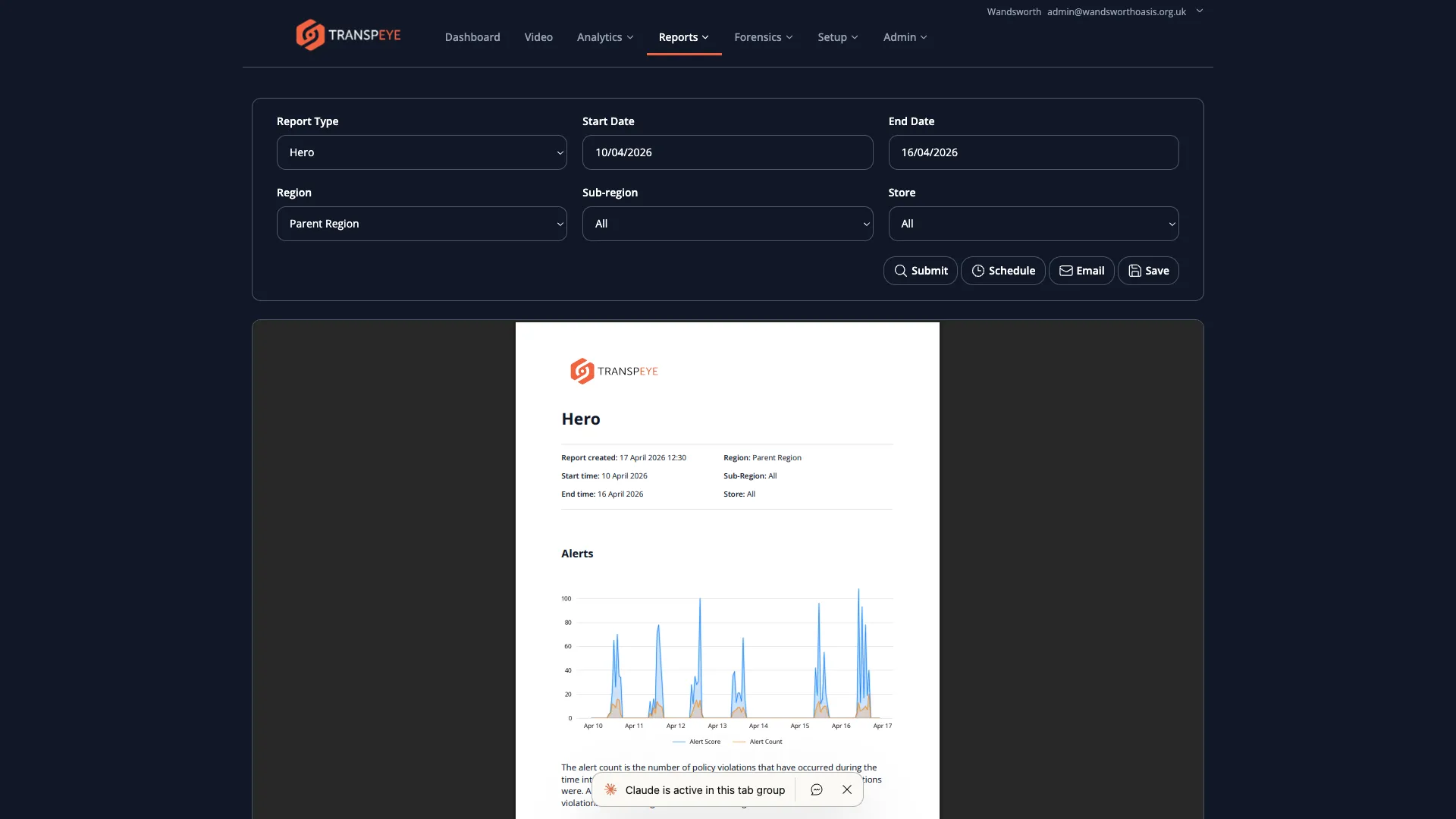
Step 2: Generate a New On-Demand Report
Section titled “Step 2: Generate a New On-Demand Report”To generate a new report, complete the report creation form at the top of the Reports page:
- Select the Report Type from the dropdown. The available report types depend on your account configuration and may include summary reports, operator exception reports, store comparison reports, Hero reports, and others.
- Set the Start Date and End Date for the reporting period using the date picker controls.
- Apply any additional filters shown, such as Region, Store, or Operator, to focus the report on a specific part of your estate.
- Click “Generate Report” to create the report. Transpeye processes the data and adds the report to the list below the form.
Report generation may take a few seconds to complete depending on the volume of data in the selected period.
Step 3: Generate a Hero Report
Section titled “Step 3: Generate a Hero Report”If Hero Alerts are enabled for your account, choose the Hero report type to create a report focused on abnormal store and operator risk signals. Hero reports use the same calculations as the Hero Alerts dashboard and analytics views, including severity, peer comparison, period movement, biggest spikes, and watchlist-style cash refund signals.
Use Hero reports when you need to share the current risk picture with managers or investigators without asking them to review the live analytics page.
Step 4: View a Generated Report
Section titled “Step 4: View a Generated Report”Once a report appears in the reports list, click the report name or the “View” action to open a formatted HTML version of the report in your browser. The view is suitable for on-screen review and printing.
Step 5: Download a Report
Section titled “Step 5: Download a Report”To download a report as a file, click the “Download” button in the report row. Transpeye generates a downloadable file (typically PDF or CSV depending on report type) and your browser saves it to your downloads folder.
Step 6: Email a Report
Section titled “Step 6: Email a Report”To send a report by email, click the “Email” button in the report row. Transpeye sends the report to the alert recipients configured for your account. This is useful for distributing regular summaries to managers who do not have Transpeye access.
If you need to send the report to a specific address not included in your global alert recipients, contact your administrator to adjust the alert recipient configuration before sending.
Step 7: Open the Scheduled Reports Page
Section titled “Step 7: Open the Scheduled Reports Page”In the navigation bar, click Reports, then click Scheduled. The Scheduled Reports page at /scheduled_report_table_view shows all recurring report schedules configured for your account.
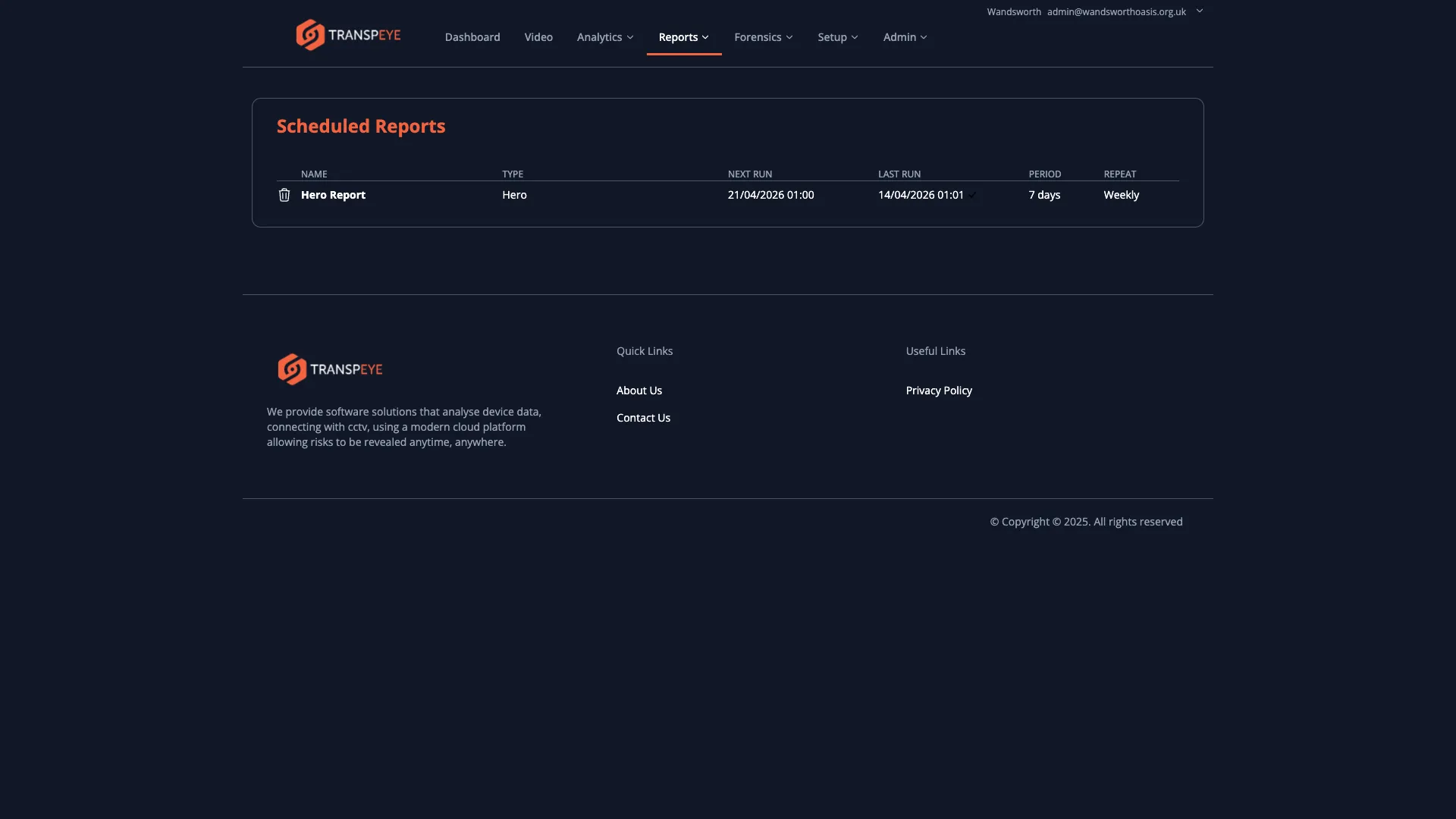
The scheduled reports table shows:
| Column | Description |
|---|---|
| Report Name | The name assigned to the scheduled report |
| Frequency | How often the report runs (for example, daily, weekly, or monthly) |
| Recipients | The email addresses the report is delivered to |
| Last Run | The date and time the report last executed |
| Next Run | The scheduled date and time of the next execution |
Step 8: Create a New Scheduled Report
Section titled “Step 8: Create a New Scheduled Report”To create a new scheduled report, click “Schedule Report” or navigate to /schedule_report. A form appears where you configure:
- Report Type — the type of report to generate
- Name — a descriptive name for the schedule (for example, “Weekly Store Summary — North Region”)
- Frequency — how often the report should run (daily, weekly, or monthly)
- Start Date — when the schedule should begin
- Filters — region, store, or other filters to scope the report
- Recipients — the email addresses that will receive each report delivery
Click “Save” to activate the schedule. The schedule will appear in the Scheduled Reports list and will execute automatically at the configured frequency.
Step 9: Manage a Scheduled Report
Section titled “Step 9: Manage a Scheduled Report”In the Scheduled Reports list, each row provides management actions:
- Edit — modify the schedule configuration, filters, or recipients
- Run Now — trigger an immediate execution of the scheduled report outside its normal schedule
- Delete — permanently remove the schedule. Existing generated reports are not deleted, but no further automatic runs will occur.
To delete a scheduled report, click the “Delete” button in the report row. Confirm the deletion when prompted. This action cannot be undone.
- Name your schedules clearly. Use descriptive names that include the report scope and frequency, such as “Monthly Operator Exception Report — All Stores”. This makes the scheduled reports list easier to manage as the number of schedules grows.
- Use scheduled reports for management distribution. If your managers or loss prevention team require weekly activity summaries, set up a scheduled report rather than asking them to log in to Transpeye. The report is delivered automatically to their inbox.
- Check the Last Run column. If a scheduled report has not run when expected, the Last Run date will be older than anticipated. This may indicate an issue with the schedule configuration or an account connectivity problem. Contact your administrator.
- On-demand reports are not permanent. Generated reports may be subject to the data retention period configured for your account. Download and archive important reports if you need to retain them beyond the system retention period.
- Combine filters to create targeted reports. An on-demand report filtered to a single store and operator over a short period can be very effective as supporting evidence in a disciplinary or investigation process.
- Use Hero reports for outlier reviews. When the question is “what needs attention first?”, generate a Hero report rather than a raw transaction summary.
Troubleshooting
Section titled “Troubleshooting”| Problem | Solution |
|---|---|
| The Generate Report button does not produce a result | Check that you have selected a valid date range and that there is data for that period. Very large date ranges can cause report generation to time out — try a shorter period. |
| The Download button produces an empty file | The report may not have completed processing. Wait a few seconds and try again. |
| Email delivery does not arrive | Check your spam folder. Confirm that the alert recipient email addresses on your account are correct with your administrator. |
| A scheduled report has not run | Check the Next Run date to confirm the schedule is still active. If the date has passed, the schedule may have been paused or an error occurred. Contact your administrator. |
| The Schedule Report option is not visible | Your user role may not have permission to create scheduled reports. Contact your administrator. |
| Hero report is not listed | Hero Alerts may not be enabled for your account. Contact your administrator. |