

Regions and Geographical Hierarchy
Overview
Section titled “Overview”Transpeye organises physical locations into a three-tier geographical hierarchy: Regions, Stores, and Zones. This structure reflects how your customer’s business is distributed geographically and determines how analytics, alerts, and reporting data are grouped and filtered throughout the platform.
Understanding and correctly configuring this hierarchy is essential before adding cameras, tills, or agents to the system, because every device must be assigned to a store, and every store must belong to a region.
This guide focuses on managing Regions at /regions. Stores and Zones are managed from their respective pages but are covered here to explain how they relate to the broader hierarchy.
Step-by-Step Guide
Section titled “Step-by-Step Guide”Step 1: Open the Regions Page
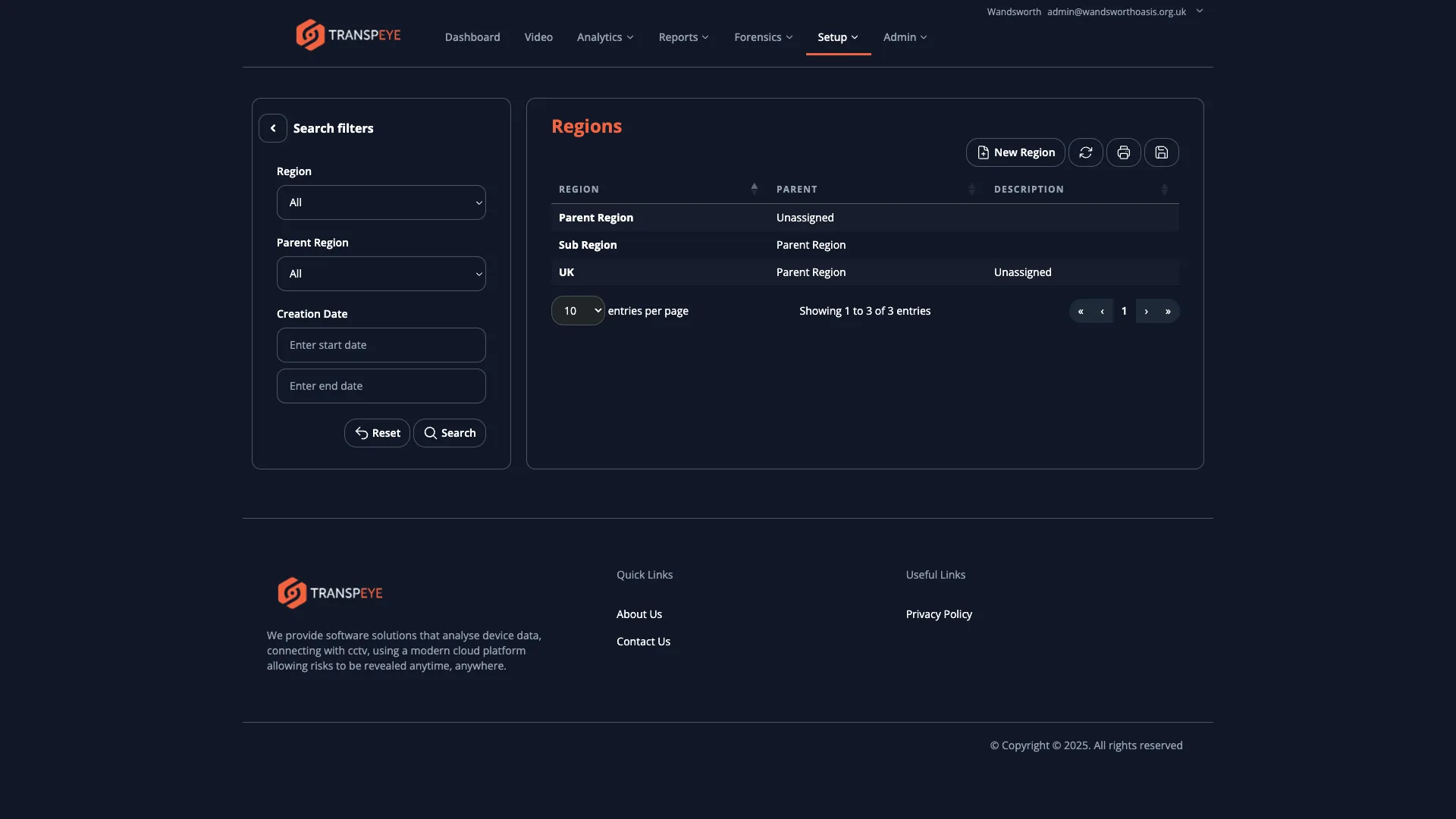
Section titled “Step 1: Open the Regions Page”In the left-hand navigation menu, select Regions. The page displays a table listing all regions currently configured for the active customer account.
Each row in the table shows:
- Name — the display name of the region (for example, “South East”, “Greater Manchester”, “Auckland CBD”)
- Actions — controls to edit or delete the region
Step 2: Create a New Region
Section titled “Step 2: Create a New Region”- Select “Add Region” or “New Region” above the table. A form appears requesting the region name.
- Enter a descriptive Name that clearly identifies the geographic area. Use names that align with how the customer organises their operations (for example, territory names, city groupings, or administrative districts).
- Select “Save” to create the region. It appears immediately in the regions list.
Step 3: Edit an Existing Region
Section titled “Step 3: Edit an Existing Region”- Locate the region you want to update in the table.
- Select “Edit” in the Actions column. The edit form opens with the current name pre-filled.
- Update the Name field as required.
- Select “Save” to apply the change. The updated name is reflected immediately across all associated stores and analytics views.
Step 4: Delete a Region
Section titled “Step 4: Delete a Region”- Locate the region in the table.
- Select “Delete” in the Actions column.
- Confirm the deletion when prompted.
Do not delete a region that still contains stores. Remove or reassign all stores within the region before deleting it. Deleting a region with active stores may cause those stores to become unassociated, which disrupts analytics and reporting.
Step 5: Understand How Regions Contain Stores
Section titled “Step 5: Understand How Regions Contain Stores”Once a region exists, stores are created and assigned to it via the Stores page (accessible from the navigation menu). Each store record requires a region assignment. A region can contain any number of stores.
Stores represent individual physical premises — a retail outlet, a venue, or a site — within the broader region. When viewing analytics in Transpeye, you can filter data by region to see aggregated results across all stores in that area.
Step 6: Understand How Stores Contain Zones
Section titled “Step 6: Understand How Stores Contain Zones”Within each store, Zones define specific areas of the physical premises — for example, “Entrance”, “Checkout”, or “Aisle 3”. Zones are configured from the Zones management page and are assigned to a parent store.
Cameras and people-counting analytics are linked to zones. This allows you to measure footfall and transaction activity in precise areas of the store rather than at the store level only.
Understanding Why the Hierarchy Matters
Section titled “Understanding Why the Hierarchy Matters”The Region → Store → Zone structure is not just organisational; it directly controls how data appears throughout Transpeye:
Analytics filtering. Every analytics dashboard in Transpeye allows you to filter by region, store, or zone. A well-structured hierarchy means you can instantly compare performance across territories or drill down to a single zone within a store.
Alert routing. When Transpeye generates an alert (for example, a transaction anomaly or a camera offline event), the alert is associated with the store and region where the device is located. Correct hierarchy configuration ensures alerts are routed to the right people and appear in the right context.
Reporting groupings. When you export transaction reports or people-counting data, the region and store columns are populated from this hierarchy. If a device is not correctly assigned to a store, it will appear as unassociated in exported data.
Scalability. For customers with dozens of sites, grouping stores into logical regions makes it practical to manage a large estate from a single dashboard without information overload.
- Plan the hierarchy before configuring devices. Create all regions and stores first, then add cameras and tills. Retroactively reassigning devices causes gaps in historical data filters.
- Use consistent naming conventions. Agree on a naming standard with the customer (for example, city-based regions, postcode areas, or territory codes) and apply it consistently. This pays dividends when filtering analytics across a large number of sites.
- One region per major territory. Avoid creating overly granular regions that contain only one store. Regions are most useful when they group five or more stores to enable meaningful comparative analysis.
- Zone names should match physical signage. If the customer’s staff refer to an area as “the service desk”, name the zone “Service Desk” rather than an internal code. This reduces confusion when reviewing alerts and analytics.
Troubleshooting
Section titled “Troubleshooting”I cannot delete a region. The region likely still contains stores. Navigate to Stores, filter by the region, and either delete those stores or reassign them to another region before attempting the deletion again.
A region I created does not appear in the analytics filter. Analytics filters update in near real-time, but may require a page refresh. If the region still does not appear after refreshing, verify that at least one store is assigned to the region and that the store has at least one active device.
Stores are not appearing under the correct region in reports. Open the store record via the Stores page and verify the region assignment field. If it shows an incorrect region, edit the store and update the region selection, then save.
The Regions page is not accessible.
Region management is available to users with the Partner (ROLE_PARTNER) or Distributor (ROLE_DISTRIBUTOR) role operating in a customer’s context. If you cannot access this page, confirm that you have switched to the correct customer context and that your user role permits configuration access.